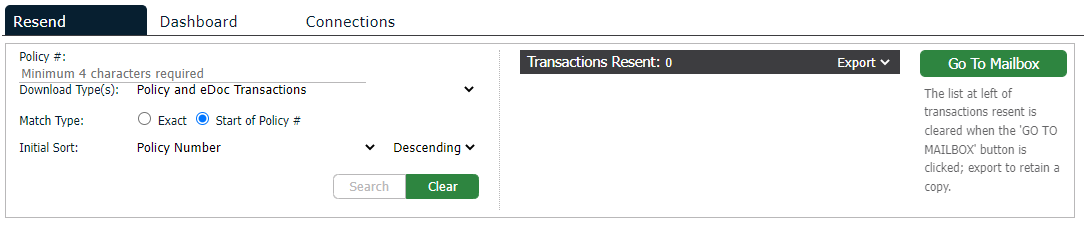
The Resend tab allows for quick access to search for a specific policy/eDoc transaction and resend it (meaning the transaction is added to the active queue so that it can be downloaded again). Some insurers may choose not to enable policy/eDoc resend; you will not be able to use this feature for transactions from those insurers.
Note: This option is intended to locate individual transactions. To resend an entire file, locate the file in the Inbox area.
To narrow the results, type a portion of
the content of any of the columns in the Find:
field. The list refreshes automatically as you type.
To see this data in a spreadsheet, click the Export
dropdown arrow and select CSV.
To sort by any of the columns in the list of search results, click the
column header. To sort in the reverse order, click the column header again.
The header of the column currently used as a sorter displays in italics.
The list displays the most recent transaction for each policy number. If
it cannot be determined which of two or more transactions is the most
recent, multiple transactions for the policy display and are marked in
red. Additionally, the message We are
unable to determine the latest version of the transactions that display
in red. Note that resending these transactions could cause duplicates
in your system displays in red above the list.
To review the Transactions Resent in a spreadsheet, click the Export dropdown arrow and select CSV.
To review your Inbox, click Go To Mailbox