Welcome to Applied Ivans Exchange, an integrated service portal that enables brokers to simply and securely perform the key tasks necessary to establish, manage, and monitor data communication between insurers and their trading partners.
Upon logging in, your broker's customized dashboard displays. This dashboard provides you the ability to easily search and resend transactions. It also gives you a single location to view all of your brokerage’s current download usage, connections opportunities, connections feedback, relevant industry news. You can return to the home page from anywhere in the system by clicking the Ivans logo at the top of the screen.
If action on an account is needed or recommended, a notification will display when you log into Exchange. If you click Remind Me Later, the message will be removed for the current session; if you click Resolve Now, you will be redirected to the screen where the action needs to be taken.
The Ivans Exchange home page contains three tabs: Resend, Dashboard, and Connections.
Note: If you do not have permission to view Dashboard, Connections, and Resend, the Home tab displays Ivans news.
The Resend tab allows you to search for a specific policy/eDoc/Policy and eDoc transaction and resend it: this means the transaction is added to the active queue so that it can be downloaded again. See the Resend article for information on resending transactions. In addition to resending transactions, the tab also displays relevant industry news and upcoming events.
A number of charts display on this tab, along with news and upcoming events. See the Dashboard article for information on these charts.
The Connections tab on the home page shows your insurer and their business transaction types and lines of business. To the right is a key that gives total connections per type. See the Connections article for information on these charts.
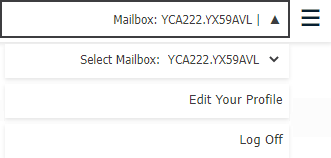
To open your profile, click the down arrow in the Account Actions menu and select Edit Your Profile.
Your user profile consists of two sections: Account Information and Settings.
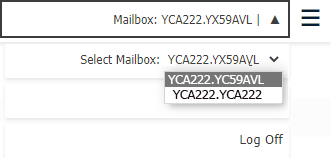
If your brokerage has a separate mailbox for each of its locations, you can click the down arrow beside your current mailbox name, activate the down arrow beside the mailbox in the dropdown list, and select the correct mailbox.
If you work primarily in a language other than the language that defaults in Ivans Exchange, you can switch to it by using the language toggle in the upper right corner. Ivans Exchange automatically updates to display the language you selected and continues to display the selected language when you access Ivans Exchange.
Please note that if Canada (French) is set as your language, some areas of the system display in English as those screens are not currently translated.
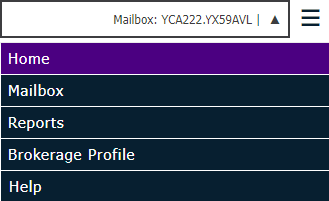
The following options are accessible by clicking the Exchange menu button in the top right corner of the screen. A brief description of the selected area displays beneath the list of options.
If your Ivans Exchange session is idle, a timeout message displays five minutes before you are due to be logged out. You have the option to either stay logged in or proceed with being logged out. If you stay logged in, the timer will rest for logout.
Ivans Exchange supported browsers include Microsoft Edge, Google Chrome, and Mozilla Firefox. These browsers are supported by Ivans Exchange, provided that users are running a service pack or updated versions still supported by the vendor (e.g. Microsoft, Google). Ivans Exchange recommends that your organization monitor the vendors’ websites for the latest patches, updates, and/or service packs, which will aid in maintaining your system and in securing your system’s data.
If you have a question about Ivans Exchange or need assistance, click Contact Us to chat with an Applied Support representative. Active chat sessions carry over if you navigate to a different page in Ivans Exchange. If no representative is available, you can create a case for your issue or question from the Contact Us link.
When you access Ivans Exchange help, the Contents panel
displays by default. Click on any of the items within the content list
to view the individual topics within. You can hide the Contents panel
by clicking the  button, and
you can click the button to
display it again.
button, and
you can click the button to
display it again.
Click  to display the Search panel.
Enter the desired keywords and press Enter.
to display the Search panel.
Enter the desired keywords and press Enter.
Note that if you enter multiple keywords, the help file will search for any topics that include all the words, but the words will not necessarily display consecutively. To search for an exact phrase, enclose it in quotation marks.